
How DayReplay Works
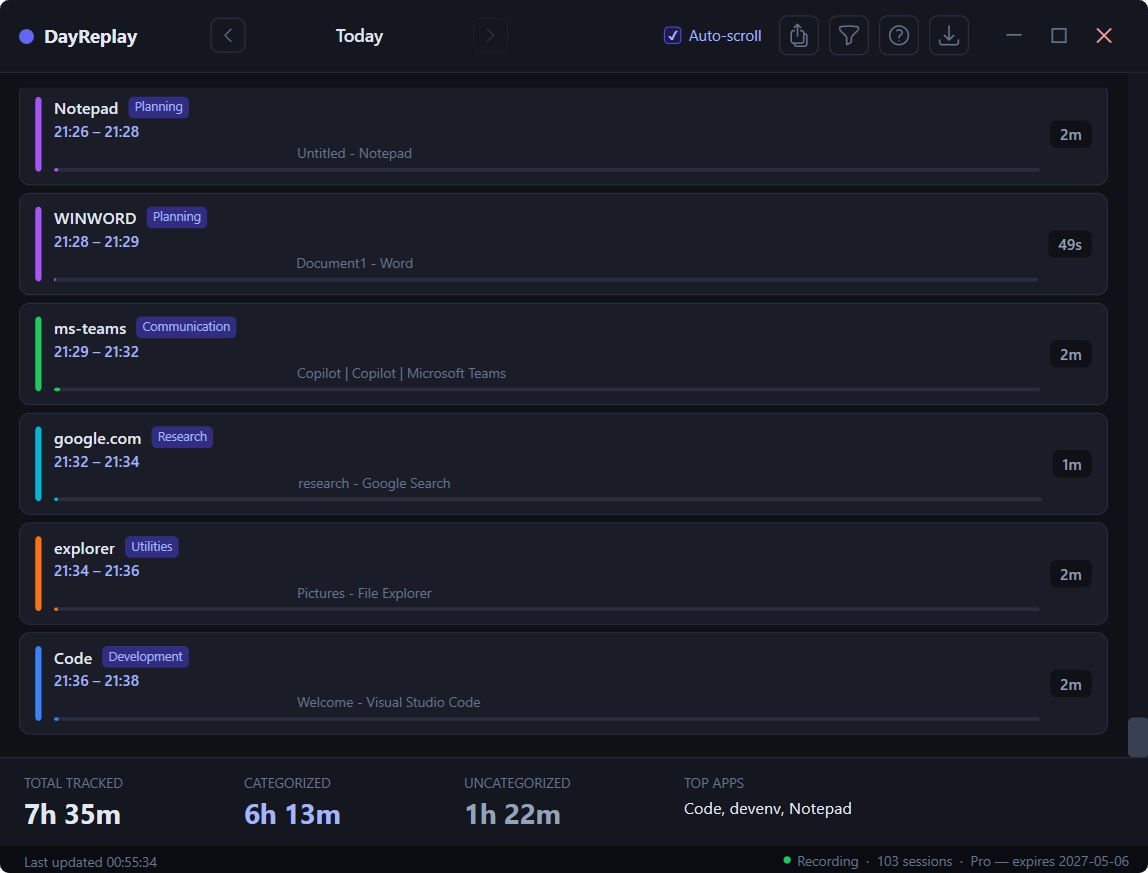
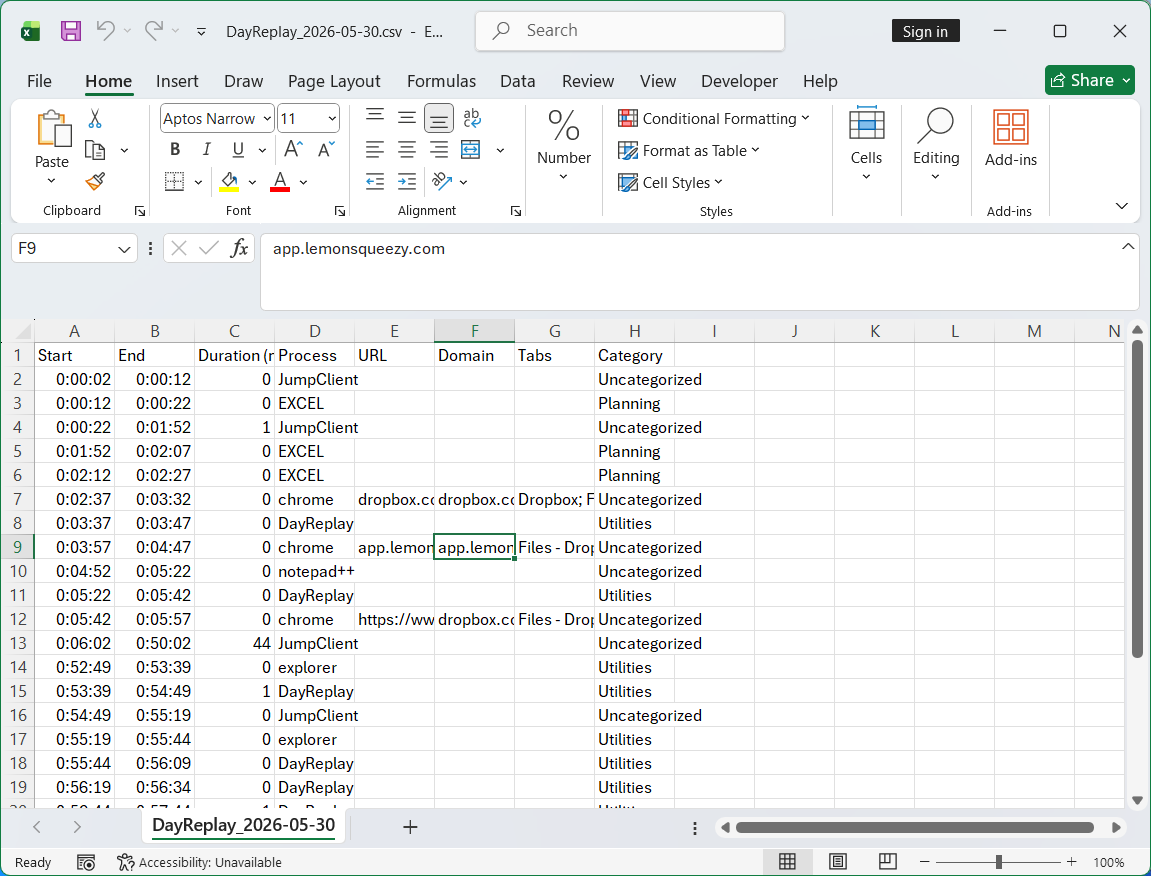
DayReplay is for people who can't reliably run manual timers all day. It passively captures the active app and browser context, groups that into readable sessions, then lets you review and export to CSV (Pro). Same model on Windows and macOS, with platform-specific capture mechanisms under the hood.
1) Capture
Every 5 seconds DayReplay snapshots the foreground window: process name, window title, and — for tracked browsers — the active tab's URL plus the titles of other open tabs in that window. Snapshots are stamped UTC and written to a local SQLite database.
- Windows. Foreground enumeration via Win32 APIs; URL + tab titles via UI Automation (Chrome, Microsoft Edge, Firefox).
- macOS. Foreground info and browser tab walking via the Accessibility (AX) API (Chrome, Microsoft Edge, Firefox, Safari). Requires the Accessibility permission — see the FAQ.
2) Session reconstruction
Individual events are merged into practical sessions so you can answer “what did I do from 2:00–4:00 PM?” without reading raw logs. Three timing rules drive grouping:
- Capture interval: 5 seconds.
- Session gap threshold: 90 seconds — bigger gap, new session.
- Minimum session duration: 10 seconds — shorter sessions are dropped as noise.
Domain-level grouping keeps a single session as you click within a site (github.com → github.com) but starts a new one when you change domains.
3) Review
At end-of-day, validate the major blocks. The full granular category set (Development, Communication, Planning, Research, Media, Utilities, with anything unmatched falling into Uncategorized) shows on every tier; Free can also open the built-in category rules read-only to inspect how things get classified. Pro adds the ability to create your own categories and colours, and to edit those rules — adding or modifying domain and process mappings — for repeatable automatic labeling that matches how your work is organised. See Customize Categories & Rules for a step-by-step walkthrough of adding domain rules and looking up process names with Task Manager or Activity Monitor.
4) Weekly decisions
Patterns become visible over a week — communication overhead, deep-work time, client/project distribution — so you can improve planning and pricing decisions instead of guessing.
What stays on your device
Captured activity. The database lives at %AppData%\DayReplay\dayreplay.db (Windows) or ~/Library/Application Support/DayReplay/dayreplay.db (macOS) and never leaves your machine. The only outbound network calls are update checks and — on Pro — license validation through Lemon Squeezy. See the privacy policy for the full breakdown of what each request sends and what it does not.