



Built for real customer pain
Manual timers fail when you juggle multiple clients. DayReplay is for people who lose money to missed logs and fragmented context across Slack, browsers, IDEs, and Figma.

DayReplay helps freelancers and developers on macOS recover billable history from real activity data — Accessibility-based capture, no screen recording, no keylogging, no cloud sync.
Download for macOSOn Windows? Read the Windows guide →
Manual timers fail when you juggle multiple clients. DayReplay is for people who lose money to missed logs and fragmented context across Slack, browsers, IDEs, and Figma.
No Screen Recording permission. No Input Monitoring. No Full Disk Access. Just Accessibility, the same way every legitimate macOS productivity app reads window titles.
Your Pro key is held in the macOS Keychain, scoped to this device and accessible only after the user logs in for the first time after a reboot. It is never synced to iCloud.
Detected categories cover the common cases out of the box; on Pro, you can add or modify the domain and process rules to match how your work is organised. See the rules guide →
.dmg, drag DayReplay onto the Applications shortcut shown in the window. macOS prompts once for your admin password to copy the app into /Applications — the system-wide install convention (Slack, Spotify, Bartender, iStat Menus all work this way). Eject the disk image and launch DayReplay from /Applications or Spotlight.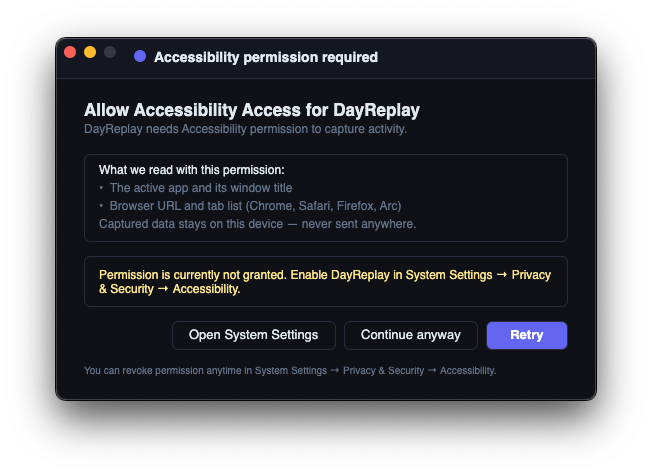

Learn more: How it works · macOS install & Accessibility FAQ · Verify your download · Security & privacy.
DayReplay runs as a menu-bar utility (the same pattern as Bartender, Stats, and iStat Menus). After install, look for the DayReplay icon at the top-right of your screen in the macOS menu bar — not in the dock or Cmd+Tab. Click it to open the timeline window, or right-click for Show / Quit.

Unlike Windows SmartScreen, macOS Gatekeeper does not show an "unidentified developer" dialog on first launch — the .dmg and the .app inside are both signed with our Developer ID Application certificate and Apple has notarized them, so Gatekeeper validates the stapled notarization ticket offline and lets the app run. If you ever do see a Gatekeeper warning on a DayReplay download, treat it as a tampered binary and contact support@dayreplay.app. For independent verification (spctl, VirusTotal, SHA-256), see verifying the macOS download.
Three ways to uninstall, in order of convenience:
/Applications/DayReplay.app in Finder → Show Package Contents → Contents/Resources/ → double-click Uninstall DayReplay.command. Same drain-and-cleanup as the in-app path, in case DayReplay won't launch for some reason./Applications/DayReplay.app to the Trash (macOS prompts for your admin password since /Applications is system-wide). Login Items entry auto-removes when the bundle is trashed. Captured data + Keychain entry are user-scoped and persist unless you also remove them — full steps in the FAQ.All three paths leave your purchased license key intact in Keychain unless you opt to remove it — so a reinstall on the same machine picks up Pro automatically.
No Screen Recording indicator in the menu bar, no Input Monitoring prompt, no Full Disk Access. A time tracker that requests more permissions than this is reading data it does not need to reconstruct your timeline.
If you bill hourly and run a Mac, your workday is fragmented by design. You move between Slack, iMessage, Safari, Chrome, Xcode, VS Code, Figma, calendar invites, terminal sessions, and a stack of Notion pages. By 5pm your manual log is missing chunks — not because you were lazy, but because manual timers assume long uninterrupted blocks. Real work is constant context switching.
DayReplay reconstructs what actually happened in the background, then lets you review it in a few minutes at end of day. Same model on macOS as on Windows, with capture mechanisms that respect Apple's privacy boundaries.
Most automatic trackers in the App Store either rely on screen recording (which feels like surveillance and triggers a permanent menu-bar indicator) or stop at app names ("Safari for 4h 12m") which is too coarse for invoicing.
DayReplay takes a third path. It uses the macOS Accessibility (AX) API to read three pieces of metadata every five seconds:
That's the entire data model. No pixel data, no keystrokes, no clipboard, no microphone, no Full Disk Access. The Accessibility permission is the only system permission DayReplay ever requests, and the OS makes the prompt explicit on first launch.
App-level totals are nearly useless for client work. "Chrome for 4h 12m" hides the fact that two of those hours were on the GitHub repo for Client A, ninety minutes were on a research thread for Client B, and the rest was your own admin. You cannot send that to a client without a 20-minute reconstruction from memory.
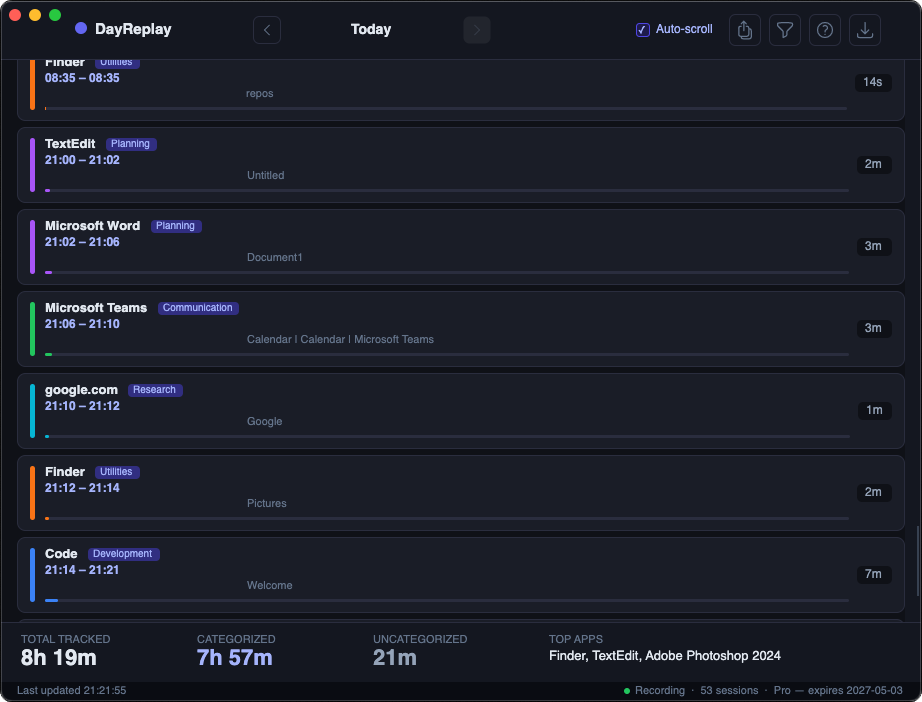
With domain-level grouping, the same four hours become three rows in your CSV with start times, end times, durations, and the tab list that proves it. That is the difference between an invoice you defend in 10 seconds and one you spend Friday afternoon reconstructing.
Privacy-first only matters if it is explicit. On macOS specifically:
service=DayReplay, account=license_key with kSecAttrAccessibleAfterFirstUnlockThisDeviceOnly — never synced to iCloud, never accessible before the first unlock.~/Library/Application Support/DayReplay/dayreplay.db with file mode 0600 (owner read+write only).You keep visibility into your work without surveillance-style capture. The signed and notarized package means Gatekeeper accepts it on first launch with no scary warnings.
Updates download in the background and stage themselves on disk as a "ready to install" .zip. Nothing touches the running application until you explicitly click Restart to Install in the Updates dialog (or Quit and install now on a freshly-downloaded update). When you opt in, the app exits and a small helper script atomic-swaps the new bundle into /Applications/ in ~2–3 seconds — one admin password prompt (since /Applications/ is system-wide), then automatic relaunch at the new version.
The staged bundle is verified twice: SHA-256 at download, and codesign --verify --deep --strict plus spctl --assess immediately before the swap. That second check closes the time-of-check / time-of-use window between download and execution — Apple's notarization ticket is re-validated offline pre-launch, so a swapped or tampered bundle never reaches the swap step. If a newer release ships while you have an update staged, a Check for newer version link lets you swap in the newer release before installing.
DayReplay is intentionally focused. It is built for:
If your workflow is one client, predictable hours, and a single timer that you actually start and stop, you do not need this. If your day involves more than two contexts and your invoice reconstruction takes more than ten minutes, this is what DayReplay solves.
A practical first week looks like this:
.dmg from cdn.dayreplay.app/latest-macos.dmg, drag DayReplay to your /Applications folder, grant Accessibility when DayReplay asks. Then forget it exists and work normally.figma.com → Design rather than Other, for example).The goal is not perfect minute-level accounting. The goal is reliable, decision-ready history.
DayReplay's macOS build is Apple Silicon native (arm64) and targets macOS 13 (Ventura) and newer. If you are still on Intel hardware or an older OS, the Mac build will not run today; the Windows build remains an option if you have a parallel Windows workflow.
Free includes today's replay (1-day history) with granular detected categories, the diagnostics panel for troubleshooting, and read-only access to the built-in category rules so you can verify value quickly without spending anything. Pro unlocks 30-day history, day navigation (← →), custom categories & colours, editable category rules, and CSV export — at $7/month or $59/year.
The same license activates on both Windows and macOS, so switching between machines does not require a second purchase. Activation runs through Lemon Squeezy once when you enter your key, then revalidates at most once every 24 hours in the background; a seven-day offline grace window covers travel and intermittent connectivity. One key covers up to five devices, manageable from the activation portal in your purchase confirmation email.
Clear constraints build trust better than vague promises.
At the end of the week, you should be able to answer:
That is DayReplay's job on macOS: help you move from fuzzy memory to accurate decisions, without compromising the privacy posture that made you choose macOS in the first place.
Free includes today's replay (1-day history), the granular detected categories, read-only access to the built-in category rules, and the diagnostics panel. Pro adds 30-day history, day navigation (← →), custom categories & colours, editable category rules, and CSV export — at $7/month or $59/year. The same license activates on both Windows and macOS, on up to five devices.