
Customize Categories & Rules
DayReplay ships with detected categories that cover the common cases — browsers, IDEs, mail clients, communication tools. On Pro you can make categorisation your own: create your own categories and colours, then refine classification with domain/path rules for browser activity and process rules for desktop applications. Domain rules can target a whole host (github.com) or a specific path within it (github.com/your-org) — useful for per-client categorization when you share one site across multiple projects. This guide walks through all three, with a worked example for Microsoft Outlook on Windows and macOS.
Any user can open the Category Rules dialog to inspect how things get classified. Adding, modifying, or removing rules requires Pro.
Open the Category Rules dialog
In DayReplay, click the tag icon in the toolbar (tooltip: Categories). The dialog shows two tables: one for browser rules (column header: Domain or path) and one for desktop application rules (column header: Process). Each row maps a key to a category. DayReplay ships with seven built-in categories (Development, Communication, Planning, Research, Media, Utilities, and Uncategorized), and on Pro you can add your own — see the next section.
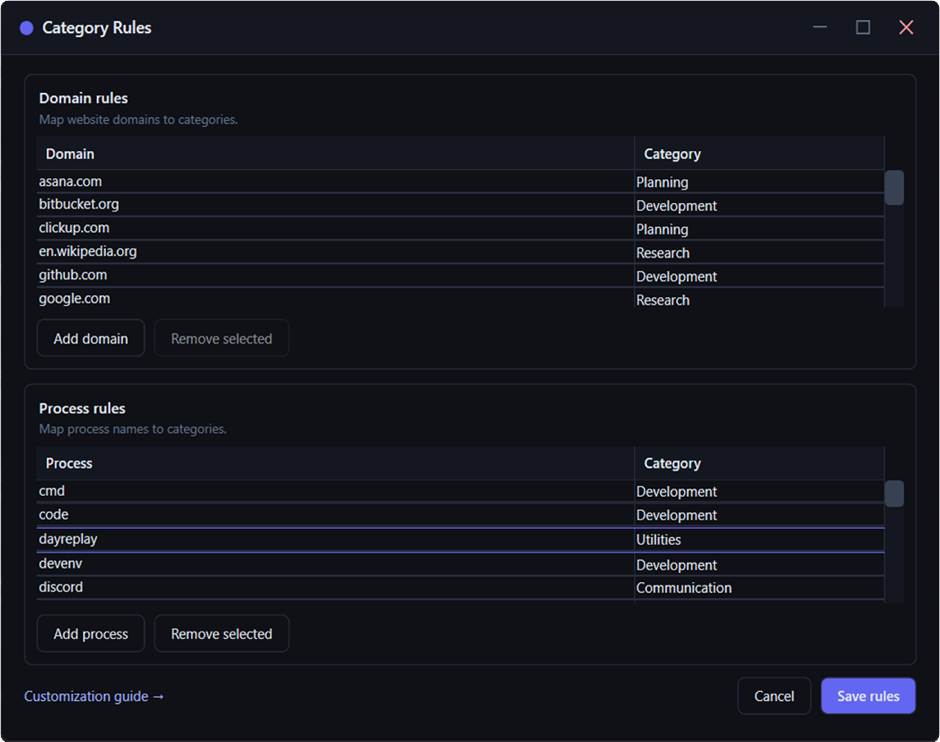
Create and colour your own categories
The seven built-in categories cover most workflows, but on Pro you can make the set your own. Click the Customize categories button in the Category Rules dialog to open the category editor.
- Add a new category and give it a name and a colour.
- Rename and recolour any category, including the built-ins.
- Delete categories you created. The seven built-ins can be renamed and recoloured but not deleted, so existing rules never lose their target.
Set a colour by typing a #RRGGBB hex value or clicking one of the preset swatches. That colour is what each session shows on the timeline, so your day reads at a glance — deep work in one colour, meetings in another.
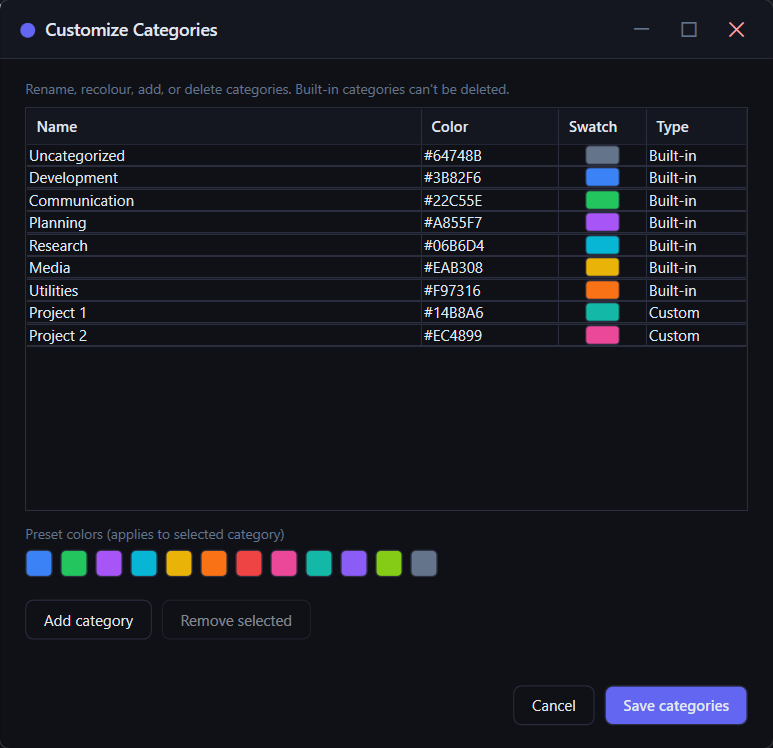
Click Save categories to apply your changes, then map domains and processes to them using the rule tables below. As with rules, the editor is read-only on Free — you can open it to see the built-in categories, but creating and editing them requires Pro.
Add a domain or path rule
Browser rules apply when DayReplay sees the focused tab's URL in a tracked browser (Chrome, Edge, Firefox on Windows; Chrome, Edge, Firefox, Safari on macOS). Click the Add domain button, then type either a bare hostname or a host + path:
| Rule key | Matches |
|---|---|
github.com | Every page on GitHub |
mail.google.com | Just Gmail (subdomain match, separate from google.com) |
github.com/your-org | That org's pages — repos, PRs, issues, settings under /your-org/... |
github.com/your-org/repo-x | Just that one repo |
app.linear.app/your-workspace | Just your Linear workspace (the rest of Linear falls back to a broader rule) |
Longest match wins. If you have both a github.com rule and a github.com/your-org rule, the more specific one applies to URLs under that org; everything else on GitHub falls back to the host-level rule. You can stack rules: a default host rule, an org override, and a per-repo override on top all coexist.
Inputs that get rejected:
https://github.com— drop thehttps://; rules are scheme-less.github.com/with space— paths can't contain spaces.github..com— malformed host.- Empty / whitespace-only rows are skipped silently rather than rejected.
What's ignored at match time:
- Query strings —
?utm_source=...,?s=...,?page=2etc. all match the same rule. A search engine's/search?q=fooand/search?q=barcount as the same page. - Fragments —
#anchor,#/route. Scrolling within a doc page doesn't create a separate session. Single-page apps that route purely via#anchors collapse into one rule's match. - Trailing slashes —
github.com/fooandgithub.com/foo/are treated as the same key, both when you type the rule and when DayReplay matches against captured URLs.
Pick a category from the dropdown and click Save rules. The new rule applies on the next session refresh; restarting the app is not required.
Per-client categorization (freelancer pattern)
The most common reason to use a path rule is when you work for multiple clients on the same platform — GitHub orgs, Linear workspaces, Notion teamspaces, Figma projects. Without path-aware rules, all of your GitHub time would land under one Development bucket. With them, you can split per-client:
github.com/northwind→ category Client Agithub.com/contoso→ category Client Bgithub.com→ category Development (the fallback for personal repos, open source, etc.)
At end-of-day, each client's hours roll up cleanly in your CSV export. The timeline row labels also show the matched key — so a session on github.com/northwind/web-app reads github.com/northwind in the row header, not just github.com.
Add a process rule
Process rules apply when DayReplay sees a desktop application in the foreground. The match key is the process name as the operating system reports it, which is not always the same as the application's display name. The simplest way to find it is in Task Manager on Windows, or Activity Monitor on macOS.
The rest of this section walks through a worked example: classifying the Microsoft Outlook desktop app as Communication on both platforms.
On Windows: Task Manager
- Press Ctrl + Shift + Esc to open Task Manager (or right-click the taskbar and choose Task Manager).
- Switch to the Details tab. The Name column shows the executable filename, including the
.exesuffix. - Find the running application. For the new Outlook desktop app, the process is
olk.exe; for classic Outlook (the older Office build), it isOUTLOOK.EXE.
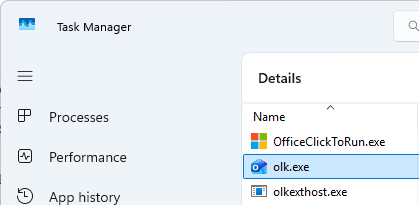
olk.exe is the new Outlook desktop app.In DayReplay, enter the process name without the .exe suffix: type olk for the new Outlook, or outlook for the classic build. The match is case-insensitive.
On macOS: Activity Monitor
- Open Activity Monitor from Applications → Utilities, or via Spotlight (⌘ + Space, then type “Activity Monitor”).
- Use the Process Name column. macOS lists each running app by its localized display name, not by an executable filename.
- For the Microsoft Outlook desktop app, the process name is
Microsoft Outlook.
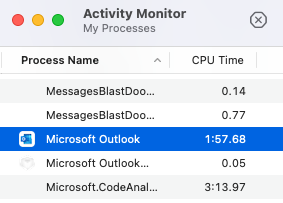
Microsoft Outlook.In DayReplay, enter the process name as shown, including the space: Microsoft Outlook. The match is case-insensitive.
Cross-platform note
The same logical application often has different process names on Windows and macOS — Outlook is olk on Windows and Microsoft Outlook on macOS. If you use DayReplay on both platforms with the same license, add both entries so the application is categorised correctly regardless of which machine you are on. Rules are stored per-platform on each device; activating Pro on a new machine starts that machine with the built-in defaults.
Removing or modifying rules
Select a row in either table and click the Remove selected button. To modify a rule, edit the domain or process name in place; the dropdown next to it lets you change the assigned category. Click Save rules to persist your changes — Cancel discards them.
Related: How DayReplay works · Pricing · Security & privacy · FAQ.