
Frequently Asked Questions
Jump to: Windows install & SmartScreen · macOS install & Accessibility · Timeline behavior · Privacy · Pro & billing
Windows install & SmartScreen
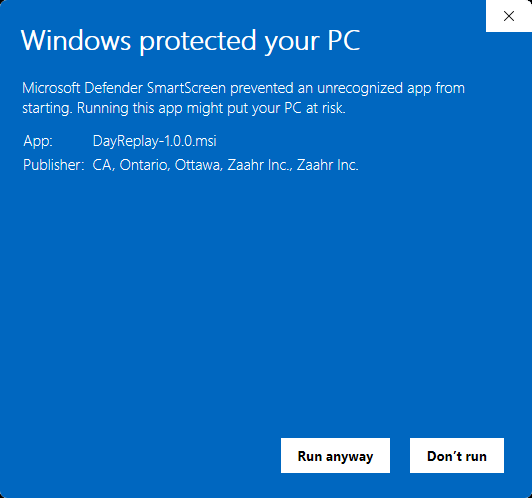
“Windows protected your PC — Microsoft Defender SmartScreen prevented an unrecognized app from starting.” Is DayReplay safe?
It is a reputation alert, not a virus alert. Installing from the Microsoft Store avoids it entirely — SmartScreen only gates the direct .msi download. If you use the .msi, click More info → Run anyway to proceed. The sections below explain why the warning appears and how to verify the binary independently.
Why it appears
Microsoft Defender SmartScreen shows this warning for any Windows binary that is not Authenticode-signed, or is signed but has not yet accumulated download reputation. The DayReplay MSI is Authenticode-signed by Zaahr Inc. via Azure Trusted Signing — the Publisher line in the warning dialog reads Zaahr Inc., which is the cert identity. The warning persists for newly-signed identities until Microsoft Defender accumulates download reputation; once enough installs run successfully without being reported, the warning stops appearing for new releases.
How to install anyway (single click, no system-settings change)
- On the “Windows protected your PC” dialog, click More info (not Don't run).
- A Run anyway button appears below the description. Click it.
- The installer proceeds normally.
Verify the binary independently
Three options for independent verification:
- Authenticode signature (fastest, runs on the installed copy): in PowerShell,
Get-AuthenticodeSignature "$env:LOCALAPPDATA\Programs\DayReplay\DayReplay.exe"Statusshould beValid,SignerCertificate.Subjectshould begin withCN=Zaahr Inc.. See the Security page for the full verification and chain-trust check. - VirusTotal: the latest v1.0.0 MSI was scanned by VirusTotal's 70+ engine consensus. VirusTotal addresses files by SHA-256, so the URL is permanent for these exact bytes — re-scan anytime by uploading your own copy to virustotal.com and you'll land on the same result page. The hash should match
97b7860d896e65af7f72bb5d3068652624913e290a4613937728e297ce3af0d1. - SHA-256 verification (run before installing): the expected hash for the latest Windows installer is published in our release manifest at cdn.dayreplay.app/updates/windows/stable.json (the
sha256field). Your browser saves the download with a versioned filename likeDayReplay-1.0.0.msi— the CDN sets Content-Disposition on thelatest-windows.msiURL so the saved file name carries the release version. Verify your downloaded copy in PowerShell (substitute the version you downloaded):Get-FileHash .\DayReplay-1.0.0.msi -Algorithm SHA256
On macOS? See verifying the macOS download for the equivalent notarization, VirusTotal, and SHA-256 checks against the .dmg.
Context for the warning
The SmartScreen warning reflects software-signing reputation, not an assessment of the application itself. DayReplay's privacy posture is unchanged on this page: captured activity stays on the device, no telemetry, no cloud sync, no remote crash reporting. See the privacy policy for the full breakdown of what does and does not cross the network.
Where does the Windows installer go and how do I uninstall?
The MSI installs DayReplay per-user under %LocalAppData%\Programs\DayReplay and registers an auto-start entry under HKCU\Software\Microsoft\Windows\CurrentVersion\Run\DayReplay so it launches when you log in. Uninstall via Settings → Apps → Installed apps → DayReplay → Uninstall. Uninstalling does not delete your captured database (%AppData%\DayReplay\dayreplay.db) — that is intentional so an accidental uninstall doesn't wipe history. To wipe everything, delete that file manually.
macOS install & Accessibility
How do I install DayReplay on macOS?
DayReplay's macOS build is native arm64 (M1 / M2 / M3 / M4). Intel Macs are not supported today; the Windows build remains an option if you have a parallel Windows workflow.
- Download the .dmg from the homepage (your browser saves it with a versioned filename like
DayReplay-1.0.0.dmg— the Content-Disposition header on thelatest-macos.dmgURL stamps the saved filename with the release version). The disk image and the .app inside are both signed with a Developer ID certificate and notarized by Apple, so Gatekeeper will not block them. - Double-click the
.dmgto mount it. A window opens showing the DayReplay app icon next to an Applications folder shortcut. - Drag the DayReplay icon onto the Applications folder shortcut. macOS will prompt for your admin password once to copy the app into the system-wide
/Applicationsfolder — this is the standard macOS install convention (Slack, Spotify, Notion, Bartender all work the same way). - Eject the mounted disk image (right-click in Finder sidebar → Eject) and launch DayReplay from
/Applicationsor via Spotlight. Look for the icon in the menu bar at the top-right of your screen — DayReplay runs as a menu-bar utility (no dock icon, no Cmd+Tab presence; same pattern as Bartender, Stats, iStat Menus). Click the icon to open the timeline window. On first launch, macOS adds DayReplay to your Login Items so it auto-starts (menu-bar only) on every login. - On first launch, macOS will prompt you to grant Accessibility permission (see below).
DayReplay deliberately runs without a dock icon — same as Bartender or Stats. After install, the icon appears in the macOS menu bar (top-right of the screen). Click it to open the timeline window. There's no entry in Cmd+Tab either; come back to the app via the menu-bar icon.
How do I verify the macOS download is genuine?
Unlike Windows SmartScreen, macOS Gatekeeper does not warn on first launch — the .dmg and the .app inside are both signed with our Developer ID certificate and Apple has notarized them, so the system trusts the download out of the box. If you still want to independently verify the bytes before trusting them, three options:
- Notarization + signature check (runs on the installed copy, no additional tools required): in Terminal,
The output should includespctl -a -t open --context context:primary-signature -v /Applications/DayReplay.appsource=Notarized Developer IDandorigin=Developer ID Application: Zaahr Inc. (AKKN8S2QWF). This is the same check Gatekeeper itself runs and confirms the bundle hasn't been modified since Apple notarized it. The full codesign chain trust can be inspected withcodesign --verify --deep --strict --verbose=2 /Applications/DayReplay.app. - VirusTotal: the latest v1.0.0 macOS DMG was scanned by VirusTotal's 70+ engine consensus. VirusTotal addresses files by SHA-256, so the URL is permanent for these exact bytes — re-scan anytime by uploading your own copy to virustotal.com and you'll land on the same result page. The DMG's SHA-256 is
a76ff7ac93083b155870ab8bf64fde8627475aceef925bba3cf00be44c4f0652. - SHA-256 verification (run before opening the .dmg): the expected hash for the latest macOS DMG is published in our release manifest at cdn.dayreplay.app/updates/macos/stable.json (the
sha256field). Your browser saves the download with a versioned filename likeDayReplay-1.0.0.dmg— the CDN sets Content-Disposition on thelatest-macos.dmgURL so the saved file name carries the release version. Verify your downloaded copy in Terminal (substitute the version you downloaded):shasum -a 256 ~/Downloads/DayReplay-1.0.0.dmg
On Windows? See verifying the Windows download for the equivalent Authenticode, VirusTotal, and SHA-256 checks against the .msi.
Why does DayReplay ask for Accessibility permission on macOS?
No Screen Recording, no Input Monitoring, no Full Disk Access, no Automation. Without Accessibility, capture falls back to process names only.
macOS guards window-title and browser-tab metadata behind the Accessibility (AX) permission. DayReplay uses AX to read:
- The active window's title (so you see “Pull request #123” instead of just “Chrome”).
- The active browser tab's URL and the titles of other open tabs in the focused window.
Without Accessibility, DayReplay still runs but can only record the process name (e.g. Code, Chrome) — no titles, no URLs, no tab list. That makes the timeline much less useful for invoicing or review.
How to grant it
- Open System Settings → Privacy & Security → Accessibility.
- Toggle DayReplay on (you may be asked for your password).
- DayReplay auto-detects within ~30 seconds; you can also quit and relaunch to pick up the permission immediately.
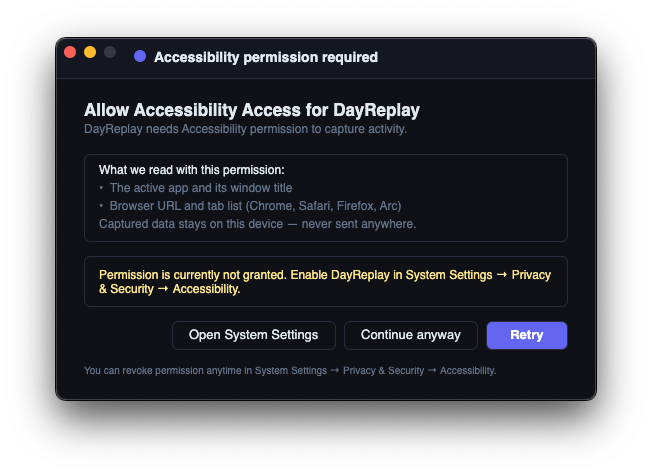
DayReplay does not request Screen Recording, Camera, Microphone, Full Disk Access, or Automation permissions. Accessibility is the only system permission it ever asks for.
How do I uninstall DayReplay on macOS?
Three options, ranked by convenience. Method 1 (in-app) is the recommended path — it handles the Login Items + optional data + Keychain cleanup for you so you don't have to touch Terminal.
Method 1 — In-app uninstall (recommended)
- Click the DayReplay icon in the menu bar → Show DayReplay.
- In the main window, click the Updates button to open the Updates settings dialog.
- At the bottom of the dialog, click the muted Uninstall DayReplay link (turns red on hover).
- A confirmation dialog appears with two optional checkboxes:
- Also delete captured activity history and logs — wipes
~/Library/Application Support/DayReplay/. - Also remove the stored license key from Keychain — removes the DayReplay Keychain entry. Leave unticked if you plan to reinstall on the same machine and want Pro to activate automatically.
- Also delete captured activity history and logs — wipes
- Click Uninstall. DayReplay drains its capture pipeline, unregisters its SMAppService Login Items entry, moves the app bundle to the Trash (one admin password prompt since
/Applications/is system-wide), and exits.
Method 2 — Bundled script (if the app won't launch)
- Right-click
/Applications/DayReplay.appin Finder → Show Package Contents → openContents/Resources/. - Double-click Uninstall DayReplay.command. A Terminal window appears, runs the equivalent cleanup steps (kills any running DayReplay process, optionally wipes captured data + Keychain, moves the bundle to the Trash), and closes itself when done.
- The script is interactive: it prompts before deleting captured data or removing the Keychain entry, so you can opt in/out per category. Moving the bundle from
/Applicationsto the Trash triggers a standard macOS admin password prompt viaosascript.
Method 3 — Manual (full control)
- Quit DayReplay (menu bar icon → Quit DayReplay).
- Drag
/Applications/DayReplay.appto the Trash. macOS will prompt for your admin password since/Applicationsis system-wide. The Login Items entry registered via SMAppService.mainApp is removed automatically when the bundle is trashed — no manual cleanup needed. - (Optional) To wipe captured data, also remove
~/Library/Application Support/DayReplay/. - (Optional) To remove your stored license key, open Keychain Access and delete the
DayReplayentry.
Is auto-update on by default?
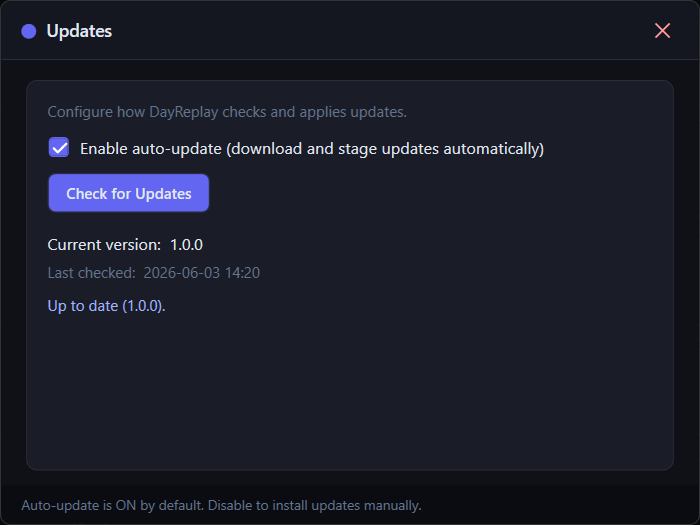
Yes — fresh installs ship with auto-update enabled (matches the convention of every modern productivity app: Chrome, Slack, 1Password, Linear, VS Code, and so on). Updates download silently in the background and stage themselves on disk as a “ready to install” bundle. You then explicitly opt in to the actual install by clicking Restart to Install in the Updates dialog (or Quit and install now in the modal that appears after a manual download).
OS shutdown, log out, and quitting from the tray menu do not auto-install staged updates — they persist on disk and stay ready until you opt in, even across reboots. So you'll never have an OS shutdown interrupted by a surprise installer running mid-shutdown, and a tray-Quit doesn't silently change which version you'll be running next.
To turn off auto-download: open Updates in the app and uncheck Enable auto-update. From then on, updates only download when you click Check for Updates. Existing users who previously toggled this setting either way keep their choice; only fresh installs see the new default.
What does the update process actually look like?
- Background download with a determinate progress bar in the Updates settings dialog (“Downloading 2.4 MB of 18.7 MB (13%)”).
- When the download finishes, the dialog's single update-action button switches to Restart to Install. If you clicked Download manually, an “Update downloaded” modal also appears with Quit and install now / OK buttons.
- The staged update sits ready until you click Restart to Install — DayReplay never quits itself for an install. Background auto-downloads skip the modal so they don't interrupt your work; the “ready to install” state just persists silently.
- When you do click, the app exits and a small helper script atomic-swaps the new version into place. On macOS this takes ~2–3 seconds and shows one admin password prompt (the swap writes to system-wide
/Applications/— same model as Slack, Bartender, 1Password). On Windows the swap happens silently inside%LocalAppData%with no MSI progress UI. The app then relaunches automatically at the new version. (First install from the website download still uses the .dmg / .msi installer — this silent path is only for in-app updates.) - If a newer release ships while you have an update staged, a small Check for newer version link below the Restart button lets you swap in the newer release before installing.
Can DayReplay force me to update?
Only in narrow circumstances. Each release manifest carries a minimum supported version field. Releases set it conservatively (well below the current version), so a normal release does not force anyone to update — you stay in control of when to click Restart to Install.
If a release ships a critical security fix or a server-side compatibility break, the minimum supported version may be raised so clients below it see a mandatory-update prompt that can't be deferred indefinitely. This is reserved for genuine “we cannot safely keep serving the old client” situations — routine releases keep the update optional, and the manifest field that drives this is published in the release notes when used.
What does the “Check for newer version” link do?
When DayReplay has an update staged and ready (the main button reads Restart to Install), a muted-text Check for newer version link appears just below it. Click the link to re-fetch the update manifest — if a newer release has shipped since you downloaded, the newer one gets downloaded and replaces the staged update in place. Useful if you've been deferring a restart for a while and want to know whether you should defer for an even-newer version, or whether the version you already have is still current.
The link is intentionally only shown in the Restart to Install state. During normal Check / Download / Idle states the main button already does the same job, and adding a second control there would just be visual noise.
Why does the Updates dialog have just one button instead of separate Check + Download buttons?
Modern desktop apps consolidate update controls into a single state-aware button. DayReplay's Updates dialog cycles through:
- Check for Updates (idle / no update available)
- Checking… (disabled, while the manifest is being fetched)
- Download Update (an update is available; auto-update is off, so the user opts in)
- Downloading… (disabled, with the progress bar filling beneath)
- Restart to Install (an update is staged and ready)
The label tells you what the next action is given the current state, so you always know what clicking the button will do. Same pattern as Chrome's About → Update, Slack's “Update available — Restart now”, VS Code's update prompt, and 1Password's Sparkle-based updater. The previous two-button layout (Check + Download) became confusing once auto-update was on by default, since Check would already trigger a background download.
Why DayReplay isn't on the Mac App Store
App Store sandboxing prohibits the macOS Accessibility (AX) API access DayReplay needs to read the frontmost app, window title, and browser tab — the entire capture mechanism. This is the same reason other deep trackers (Timing, for example) ship outside the Mac App Store. It's a capability constraint, not a review problem.
Timeline behavior
How often does DayReplay capture activity?
Every 5 seconds while the app is running. The timeline UI then refreshes about every 30 seconds during active capture (after every 6 events) and at least once per minute regardless.
Why don't I see every tiny app switch?
Sessions shorter than 10 seconds are discarded to reduce noise from quick app flashes (alt-tabbing through windows, transient notifications). This is intentional and not configurable today.
Why are two chunks of the same app split into different sessions?
If the same app+domain is in focus but no captured events arrive within 90 seconds, DayReplay starts a new session. That gap usually means you stepped away, the screen locked, or the foreground really did change. Domain changes within a browser also start a new session — navigating from github.com to youtube.com splits, but clicking through pages within github.com extends the current session.
Why is browser URL/tab context sometimes missing?
Browser accessibility data can be transiently unavailable (browser still launching, a UI element not yet rendered, an OS-level AX timeout). DayReplay continues recording app/window activity and falls back to cached browser context where possible.
Can a browser update break URL or tab capture?
Occasionally, yes. DayReplay reads browser tab and URL data through the operating system's accessibility layer — UI Automation on Windows, the AX API on macOS. When a major Chrome, Edge, Firefox, or Safari release reshapes its tab strip or address bar in the accessibility tree, the walker that reads them can stop returning URL and tab data for that browser until a DayReplay update ships a matching fix. This is rare — typically a once-or-twice-per-year event per browser — but it does happen.
When it does, capture stays operational with reduced fidelity:
- The active app name still records (e.g.
Chrome,Firefox). - The window title still records.
- The active tab's URL and the list of open tab titles do not.
- No crash, no data loss for already-captured sessions.
Fixes ship through the regular auto-update channel — keeping DayReplay updated is the single most important step to recover URL/tab capture quickly after a browser regression. If you're on the current DayReplay release and a specific browser is still missing tab context after a major browser update, email support@dayreplay.app with the browser name and version; most browser-AX regressions get a corresponding DayReplay update within a few days.
Privacy
Does DayReplay take screenshots?
No. DayReplay never reads pixel data. There is no screen recording either.
Does DayReplay record keystrokes?
No. There is no keylogger.
Where is my data stored?
Locally, in a single SQLite file: %AppData%\DayReplay\dayreplay.db on Windows or ~/Library/Application Support/DayReplay/dayreplay.db on macOS. On macOS the file is mode 0600 (owner-only). See the privacy policy for the full data model.
Where is my license key stored?
- Windows: a DPAPI-encrypted blob inside the database's
settingstable — bound to your Windows user profile. - macOS: the system Keychain (
service=DayReplay, account=license_key) withkSecAttrAccessibleAfterFirstUnlockThisDeviceOnly. Never synced to iCloud.
Does DayReplay phone home?
Two kinds of outbound request:
- The update-manifest GET to
https://dayreplay.app/api/updatesat startup and when you click “Check for Updates.” Sends platform, channel, and current version — no identifier, no license key, no captured activity. - License activation and revalidation calls to
https://api.lemonsqueezy.com/v1/licenses/when you have a Pro key — once on activation, then at most once every 24 hours in the background. Sends the license key, an activation UUID, and your hostname (used as the device label in your Lemon Squeezy account). Captured activity is never sent. See the privacy policy for the full breakdown.
Pro & billing
What does Pro unlock?
- 90 days of history (vs. 7 days on Free).
- Custom categories & colours — create your own categories and recolour any of them (Free can view them read-only).
- Edit custom category rules — add/modify domain/path and process mappings, including per-org or per-repo targeting like
github.com/your-org(Free can view the built-in rules read-only). - CSV export (one row per session, for invoicing or reporting).
- Session count and license “last verified” indicator in the status bar.
Note: day navigation (← →) and the Diagnostics / Support panel are available on Free too — reviewing your own week and getting support shouldn't sit behind a paywall.
How do I add a custom category rule?
Open the Categories dialog in the app. For browser activity, add a rule keyed by either a bare hostname (e.g. github.com, applies to the whole site) or a host + path (e.g. github.com/your-org, applies to just that org or repo). Longest match wins, so a per-org rule overrides a per-host fallback. For desktop applications, add a process rule using the process name reported by Task Manager on Windows or Activity Monitor on macOS — without the .exe suffix on Windows. See the customize categories guide for a full walkthrough with screenshots.
Can I create my own categories or change their colours?
Yes, on Pro. In the Category Rules dialog, click Customize categories to open the editor, where you can add new categories, rename them, and set each one's colour (a #RRGGBB hex value or a preset swatch). That colour is what the session shows on the timeline. The seven built-in categories can be renamed and recoloured but not deleted; categories you create can be deleted. The editor is read-only on Free. See the customize categories guide for screenshots.
How much does Pro cost?
A one-time lifetime license at $49 (launch price — $69 after launch) with all future updates included, or $7/month. Both billed through Lemon Squeezy. See the pricing page for the full comparison.
How does activation work?
Buy through the Lemon Squeezy checkout, receive a license key by email, then paste it into Activate Pro in the app. The app contacts Lemon Squeezy once to register your device, then revalidates at most once every 24 hours in the background to confirm the key is still valid. If you go offline, DayReplay trusts the cached state for up to seven days before pausing Pro features — the cached bundle stays on disk so the next successful validation flips you back to Pro without re-entering the key.
Can I use the same license on Windows and macOS? On how many devices?
Yes — the same key activates on either platform. Each activation registers as a separate device in your Lemon Squeezy account (labeled with your hostname so you can tell them apart), up to the per-key device limit (currently five). If you hit the limit, deactivate one device from inside the app or revoke it from the activation portal linked in your purchase confirmation email, then activate on the new machine.
How do I cancel or get a refund?
Subscriptions and refunds are handled by Lemon Squeezy (our Merchant of Record). Use the subscription-management link in your purchase confirmation email to cancel; for refunds, reply to the LS receipt or contact support@dayreplay.app and we'll process it through the LS dashboard.
Can I use DayReplay for billing?
Yes — that's exactly what Pro's CSV export is for. Review and sanity-check your daily timeline, correct categories where needed, then export. Combine daily CSVs in Excel or Sheets for weekly client rollups.