Local-first storage Zero telemetry Native Windows & macOS builds One license, up to five devices
Supported browsers
A real timeline, not a timer log
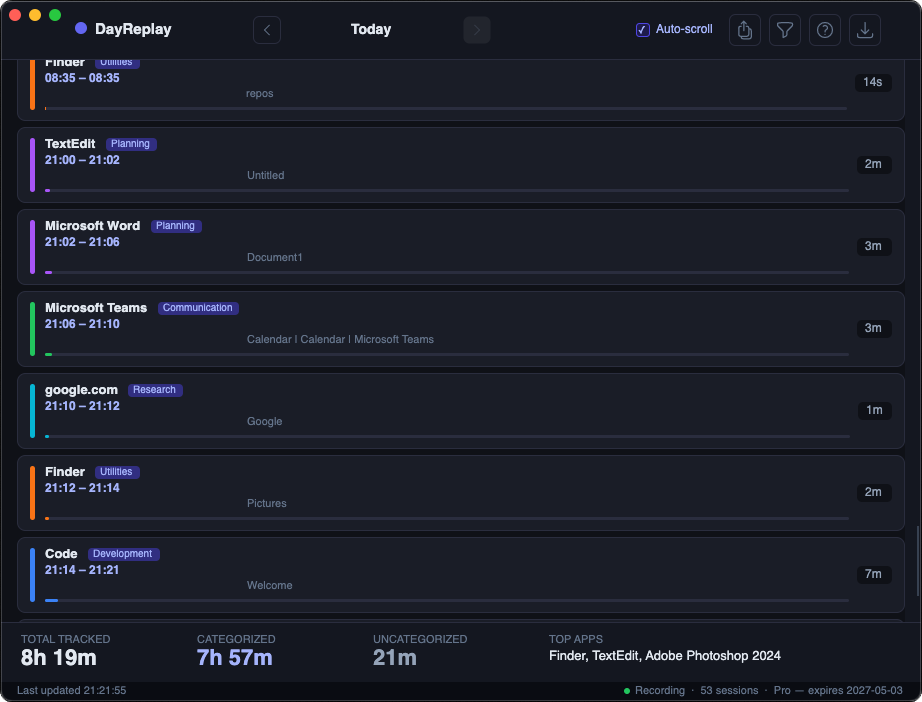
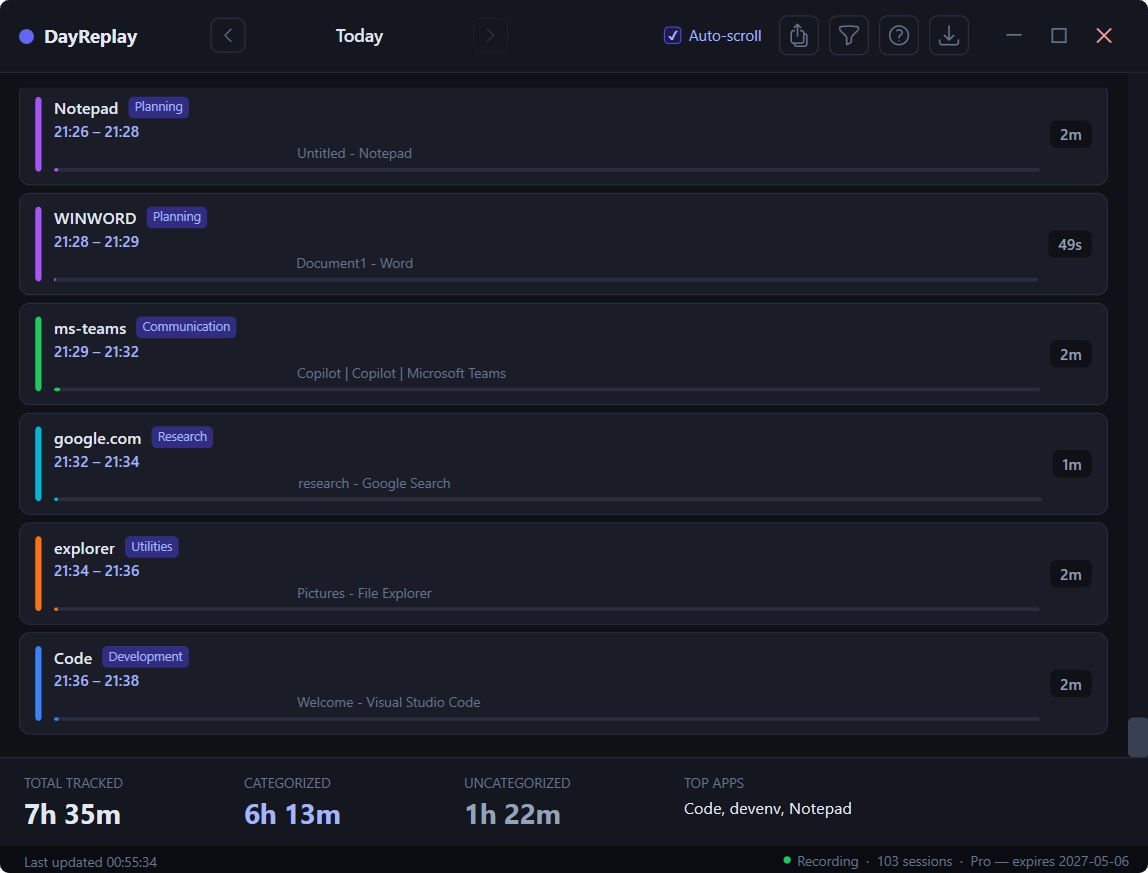
See your day reconstructed
One row per session, with application, URL, and tab context. End-of-day review takes minutes instead of the manual reconstruction that typically drags into Friday afternoons.
Why DayReplay
Built for fragmented workdays
Tunable categorization
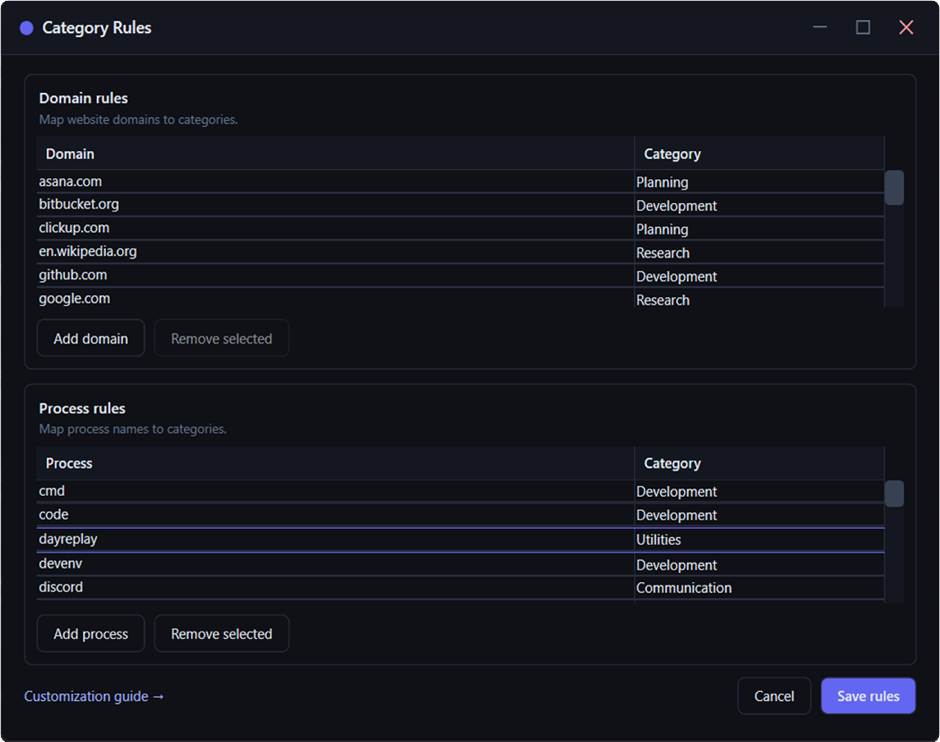
Sensible defaults out of the box — browsers, IDEs, mail clients, chat apps all detected. Pro lets you refine that with two kinds of rules:
Domain rules for browser activity — linear.app → Planning, github.com → Development
Process rules for desktop apps — OUTLOOK.EXE → Communication, code.exe → Development
Every session lands in the right bucket, so the timeline reads as project work instead of generic app names.
DayReplay samples the foreground app, window title, and active browser tab every five seconds. There are no timers to start, stop, or remember — context-switching no longer erodes your records.
Browser tab context
Beyond the application name, DayReplay records the active tab's URL and the titles of other open tabs in the focused window. Sessions are grouped by domain so the timeline reads as project work rather than “Chrome, 4 hours.”
Invoice-ready exports
Pro CSV export produces one row per session with start, end, duration, application, domain, and tab list — a structured artifact you can hand to a client or import into a billing system directly.
Local-first storage
Captured activity is stored in a SQLite database under your user profile, with file mode 0600 on macOS. The data does not leave your device; the only outbound network calls are update checks and license validation.
Lightweight license validation
The app verifies your license with Lemon Squeezy on activation, then revalidates at most once every 24 hours in the background. A seven-day offline grace window keeps Pro features available during travel or intermittent connectivity.
One license, both platforms
Native Windows and macOS builds, with the same license key activating on either platform — up to five devices per key. Manage active devices any time from the activation portal in your purchase confirmation email.
Download
Pick your platform
Both builds are self-contained — no .NET runtime install required.
Install from the Microsoft Store to skip the SmartScreen warning, or use the direct MSI installer (Windows 10/11, x64). The MSI is Authenticode-signed by Zaahr Inc. via Azure Trusted Signing; on the direct download SmartScreen may still show a reputation warning on early installs until Microsoft Defender accumulates download data — click More info → Run anyway. See the FAQ for steps and SHA-256 verification.
macOS
Signed & notarized .dmg, macOS 13+ (Apple Silicon). Open the .dmg, drag DayReplay to your /Applications folder (one admin password prompt to copy in), then grant Accessibility when DayReplay asks. Runs as a menu-bar utility, so you won't see a dock icon. One-click uninstall from the in-app Updates dialog, with optional history + Keychain wipe — no Terminal. See the FAQ for details.
Pricing
Upgrade when it pays for itself
Free covers today's replay (1-day history), the built-in category rules (read-only), and the diagnostics panel. Pro adds 30-day history, day navigation (← →), custom category-rule editing, and CSV export.